
Send a message to your patient to confirm their appointment
Marketing automations for aesthetic clinics
Patient journeys that respond to your clinic.
Let the work in your clinic shape what happens next. Start with a ready-made automation or build your own, with live clinic events, relevant checks, personal messages and follow-up tasks for your team.
At a glance
Follow-up that follows the context.
Connect the moments in your clinic with messages and team actions. Give each journey a useful starting point, a relevant next step and a result you can review.
A starting point. Or your own.
Choose a default workflow or build a journey for the way your clinic works.
Connected to real moments.
Respond to appointments, saved notes, treatment-plan activity and more.
Check before continuing.
Use waits and conditions to keep the next action relevant.
A message. A task. A person.
Bring patient messages and assigned team follow-up into one journey.
Follow the journey through.
See where patients are, then review qualifying bookings and purchases.

Ready-made and configurable
A useful start for the work you already do.
Appointment messages, aftercare, treatment reminders and gift cards have familiar starting points. Review the workflow, choose your templates and adapt the timing before you start it. Or build a custom journey from a blank canvas.
- Use a supplied starting point or create a custom workflow
- Choose your message templates, timing and conditions
- Review the setup before deliberately starting it
Appointment confirmation
SMS and emailAsk patients to confirm their appointment.
Appointment booked
SMS and emailFollow a new booking with the appointment details.
Appointment rescheduled
SMS and emailKeep changed appointment details in view.
Aftercare
EmailFollow a saved note with its aftercare or practitioner message.
Treatment reminder
SMS and emailSend reminders around the configured treatment schedule.
Treatment follow-up
SMS and emailFollow up after a treatment-related appointment.
Gift card received
EmailDeliver the gift-card information to its recipient.
Gift card purchased
SMS and emailContact the purchaser separately from the recipient.
Built around the plan
The next appointment. The next product. The next plan.
Treatment-plan journeys use the plan’s own timing and activity. Booking, purchase and active-plan checks help decide whether the next message or task is still useful.
Explore treatment planningTreatment plan appointment due
Follow a due, unbooked treatment with a message, wait and booking check. A configured reception task can be the next step.
Treatment plan sample follow-up
Follow a sampled product and check whether it was purchased before continuing.
Treatment plan product repurchase
Use the configured repurchase interval, then check for a purchase before the next message.
Treatment plan complete
Check for an active plan and a booked appointment before inviting the patient to reconnect.
Live clinic events
The follow-up begins in the clinic.
A new appointment. A note saved. A treatment due in a plan. Use supported events to begin a configured journey, with filters that keep the trigger relevant to your clinic.
- Appointments: new, changed and treatment-related events
- Clinical notes: a saved note with the configured context
- Treatment plans: due treatments, samples and repurchase timing
Choose the moment. Match it to an opportunity.
Explore the trigger types by clinic workflow. Each trigger offers its own filters; availability depends on the related features enabled for your clinic.
Appointments and attendanceSupport bookings and keep changed appointments in view.
Start the journey when
- New appointment
- Appointment rescheduled
- Appointment cancelled or no-show
- Appointment confirmations
- Appointment reminders
- Telehealth video call reminder
- Appointment no answer
A clinic exampleFollow a cancellation with a rebooking message, then check for a future appointment before asking reception to follow up.
Treatment plans and return visitsFollow up the next treatment or skincare purchase in the plan.
Start the journey when
- Treatment reminder
- Treatment follow-up
- Plan created
- Plan updated
- Treatment due this month
- Product sampled
- Product repurchase due
- Plan completed
- Assessment completed
A clinic exampleWhen a sampled product needs follow-up, check whether it has been purchased before sending the next message.
Clinical notes and prescribingConnect the visit with its next communication.
Start the journey when
- New clinical note
- Post visit
- New prescription
- Prescription repeat due
A clinic exampleUse a saved clinical note to begin the configured aftercare email, including the practitioner’s personal message.
Invoices, retail and gift cardsKeep patients informed and follow up unfinished purchases.
Start the journey when
- New invoice
- Package purchased
- New online store order
- Online store order shipped
- Online store payment failed
- Gift card purchased
- Gift card received
A clinic exampleA failed online checkout can begin a support message or team task, so your team can help the patient complete their purchase.
MembershipsHelp your team keep membership payments and renewals on track.
Start the journey when
- Membership created
- Membership renewed
- Membership completed
- Membership payment failed
- Membership cancelled
- Membership cancellation scheduled
- Membership card expiring
A clinic exampleAn expiring card can prompt a reminder; a failed payment can create an assigned follow-up task.
New patients, leads and referralsWelcome new patients and follow up enquiries at the right stage.
Start the journey when
- New patient
- New lead
- Lead converted
- Lead stage changed
- Referral completed: referee
- Referral completed: referrer
A clinic exampleCheck whether an enquiry is still a lead before continuing follow-up. Keep referral messages relevant to each person’s role.
Audience and engagementRespond when a patient’s interests or audience membership change.
Start the journey when
- Segment entered
- Segment exited
- Email opened
- Form flow completed
A clinic exampleWhen someone enters your skincare audience, begin a relevant journey and recheck segment membership before the next message.
Messages, requests and team tasksBring patient conversations and outstanding work into team follow-up.
Start the journey when
- New message
- New request
- Request declined
- New task
- Task updated
A clinic exampleUse a new request to create a patient-linked task for the team member or group responsible for responding.
PathologyBring results and requests into your configured review workflow.
Start the journey when
- New pathology request
- New result
- Critical pathology result
A clinic exampleNotify the responsible team when a result arrives. Clinical interpretation and decisions stay with the practitioner.
Scheduled journeysStart recurring work at a time your clinic chooses.
Start the journey when
- Fixed schedule
A clinic exampleUse a scheduled start with an audience check for recurring patient follow-up, then apply waits and send windows within the journey.
One visit, connected follow-up
Bring the visit together before following up.
With post-visit follow-up enabled, a running automation can group eligible aftercare, invoice, treatment-plan and next-appointment information from the same visit. It waits for a configured quiet period after visit activity before preparing the follow-up.
- Group supported activity associated with the patient’s visit and location.
- Review the message template, trigger filters and timing before starting the workflow.
- Keep online-booking confirmations separate from the in-clinic visit follow-up.
Begin with a relevant event.
Select the event, then narrow it with supported filters such as brand and treatment. This example follows a new skin review appointment.
A saved note can begin the next step.
The aftercare workflow can follow a new note with the configured aftercare or practitioner message.
Wait. Check. Continue.
A lot can change between two messages.
Someone may have booked since the first reminder. Or purchased the product you were about to follow up. Add a check at the point it matters, then choose a different path when their situation has changed.
Check the patient’s record before the next step.
Conditions read the relevant clinic data when the journey reaches them. Choose the checks and Yes/No or branching paths that fit the follow-up you want to run.
Bookings and attendanceSee whether an appointment reminder is still useful.
Checks you can add
- Has future appointment
- Confirmed appointment
- Still unbooked
- Had treatment
- Appointment booked since
- Appointment cancelled
A clinic exampleAfter a reminder and wait, check for a booking. End that path when the patient has booked, or continue with a follow-up task when they have not.
Treatment plans and purchasesKeep follow-up aligned with the plan and recorded purchases.
Checks you can add
- In treatment plan: planned, booked or had
- Treatment plan treatment booked
- Treatment plan product purchased since
- Active treatment plan exists
A clinic exampleCheck for a product purchase before another repurchase reminder, or for an active plan before inviting the patient to plan their next visit.
Patient context and audienceGive different patients the next step that fits their situation.
Checks you can add
- New patient
- In segment
- Is still lead
- Trigger data
A clinic exampleCreate a welcome path for new patients, check whether an enquiry is still a lead, or branch using supported patient, form and assessment fields.
Messages and app activityUse message and app context when choosing the next step.
Checks you can add
- Messages read
- Has app
A clinic exampleCheck supported message-read status or app usage before choosing another message or a personal follow-up task.
Pathology and requestsCheck which results or requests still need attention.
Checks you can add
- Pathology results received
- Pathology results abnormal
- Pathology request completed
- Subsequent request
A clinic exampleCheck whether the required results have arrived before routing an assigned review task. Practitioners decide the clinical response.
Give the next step a reason.
A treatment-plan booking check can look for the exact planned option, or match another option for the same treatment. Its Yes and No paths keep the decision visible in the builder.
- Wait for the interval you choose
- Check the relevant booking or purchase
- Continue down the configured path
Use the audience you have already defined.
An In Segment condition checks whether the patient is still an active member of the selected audience at that point in the journey.
Explore patient segments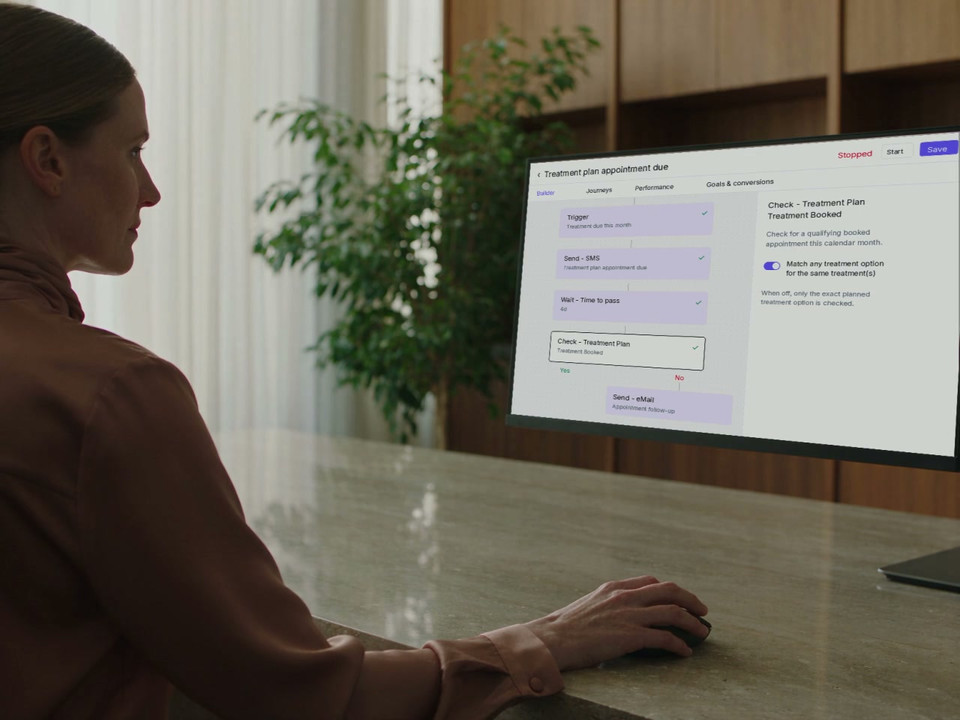
Before you start
Review the path as a whole.
Keep the event, wait and booking check visible while you review the next message.
Keep the logic in view.
See the wait, check and next message together. The clinic decides what each path should do.
Messages and team follow-through
Some next steps need a person.
Send an email, SMS or patient-app message. When a personal follow-up makes more sense, create a patient-linked task for a staff member or group, with the details they need to act.
In the patient’s day
The clinic context travels with the message.
Use email, SMS or a patient-app message for a useful next step. Bring the patient back to the plan or conversation they already know.
Explore online bookingExplore the patient appWhen a person should follow through
A task with a patient, an owner and a due date.
Give reception a call-list task when the journey reaches the point for a personal conversation. Set a staff member or group, the task type, location and a useful description.
Configure the handover.
Choose Reception, a call-list task type and a due date two days after task creation.
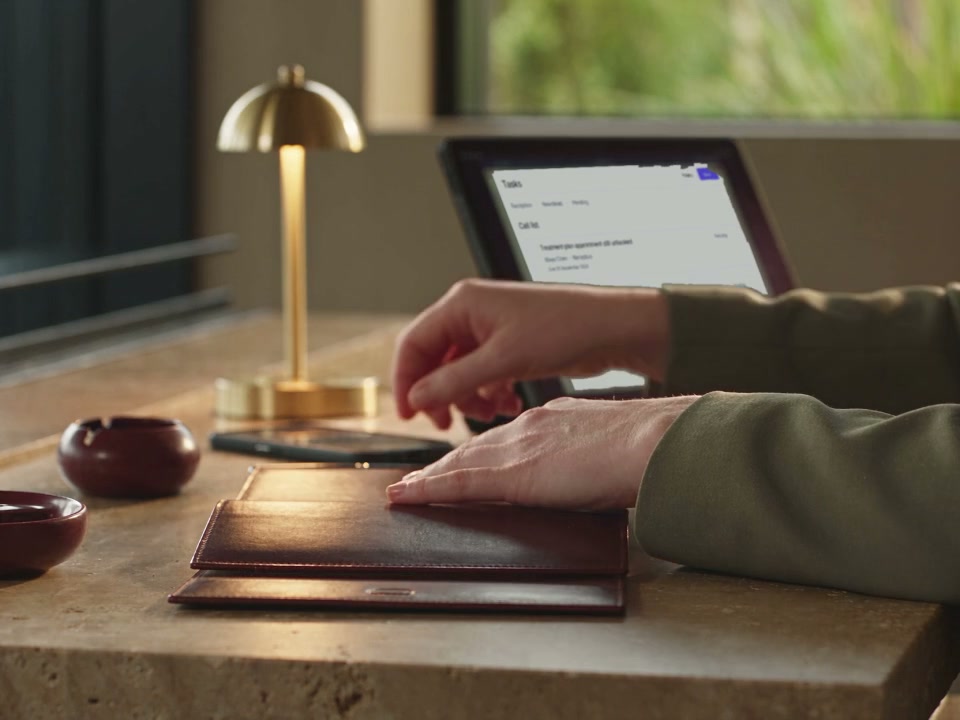
Open the task with its context.
The pending task stays linked to the patient. The team decides when to call and records what happens.
Ready for a conversation
The automation can hand over. Your team takes it from there.
An assigned task puts the next action in the team’s workflow. Calls, decisions and completion stay with the people doing the work.
Explore tasks and team handovers
“A patient journey should respond to what actually happens. Sometimes the right next step is a message. Sometimes it is a task for someone in the clinic to make a call.”
Individual patient journeys
See where they are. Understand how they got there.
Filter journeys by patient, current step or status. Open a record to see the event that started it, the steps it has reached and the result of its checks.
Open the individual journey.
See the trigger, timestamps and branch outcomes. Here the patient’s journey is waiting before the next booking check.
A useful review
The steps explain the status.
See whether the patient is waiting, has reached a check or has finished the workflow. Use that context when the team discusses what to do next.
More context for the team.
A completed journey means the workflow has finished. Its booking or purchase goal is a separate measure.
Goals and performance
See the appointments and product purchases that follow.
Connect campaign results to the appointment and purchase records already in DappleOS. Choose a treatment-booking or product-purchase goal and a time window, then see which patient journeys met it. Review these outcomes alongside email opens and clicks, with the actual clinic activity in view.
- Track treatment appointments recorded in your clinic diary
- Track product purchases recorded in DappleOS
- Choose the goal and time window, then review each journey’s result
A different view of performance
See how each email step performs.
Choose a period and review sends, delivery and email engagement. A breakdown by email step helps the team see which message to look at more closely.
Email opens can include automatic preloads. Keep those signals alongside the defined goal and patient context.
One connected workflow
From the clinic event to the next action.
Keep the appointment or treatment-plan context, patient message and team task together. Spend less time moving between a reminder list, a separate messaging tool and a follow-up spreadsheet.
Segments define who.
Build and maintain the audience from your clinic’s patient information, then use it in a journey.
Explore segmentsBroadcasts make a deliberate send.
Send a specific campaign to a chosen audience, with its own message and qualifying goal.
Explore broadcastsTrust and control
Your rules. Your clinic’s control.
Review the event, conditions, message and assignee before starting a workflow. Keep its running state and results visible to the people who manage it.
Feature availability depends on your plan, enabled features and access permissions.
- Hosted in Australia
- Encrypted storage
- Deliberate activation
- Save the configured workflow, then choose Start. Running and Stopped states remain visible in the builder.
- Relevant preferences
- Marketing sends check the relevant channel preference. Transactional configuration is separate and should match the purpose of the communication.
- A clear task owner
- Select a user or group for task actions. A task is created when the journey reaches that action with a valid assignee.
- Meaningful measurement
- Permissions control access to performance. Defined goals and windows measure qualifying outcomes, without treating them as proof of causal lift.
Ready when you are
Save the setup. Then choose Start.
Keep configuration and activation deliberate. The builder shows whether the workflow is Running or Stopped, so your team can see what is active.
A little more detail
FAQs
Explore how events, conditions and patient follow-up fit together, then shape a useful first journey for your clinic.
Book a demoCan automations respond to what actually happens in our clinic?
Yes. Supported events include new appointments, saved notes, treatment-plan activity, treatment reminders and gift-card events. The configured event starts the journey, which then follows its checks, waits and actions. Event-driven, scheduled and segment-based triggers have different timing; they are not all instantaneous.
Can we start with a default and also build our own?
Yes. The default cards cover appointment confirmation, booking and rescheduling, aftercare, treatment reminders and follow-up, and gift-card purchaser and recipient messages. There are also treatment-plan, post-visit and referral journeys. You can review and adapt a supplied workflow, or use New to create your own with supported events and actions.
Can a journey stop reminding someone who has already booked?
A configured booking check can take a different path when the relevant appointment exists. For example, the treatment-plan booking check can inspect the exact planned treatment option for a qualifying appointment in the current calendar month. You choose the check and its scope; it is not an automatic rule on every message.
Can an automation create a call list for our team?
Yes. A Task action can create a patient-linked Pending task for a selected staff member or group. Set the title, description, task type, location and an optional due date in days. A reception call list can use those tasks; the automation does not dial or complete the call.
Which patient message channels can we use?
Workflows include email, SMS and patient-app or portal messages using configured templates. Keep the chosen channel, patient details and message context together. An app-message action is distinct from confirmed push-notification delivery.
Can follow-up bring information from the same visit together?
Where post-visit follow-up is enabled, a running automation can group supported aftercare, invoice, treatment-plan and next-appointment information associated with the same visit. A configured quiet period allows the visit’s activity to settle before the follow-up is prepared. Trigger filters, message setup and running state still apply. Online-booking confirmations remain separate.
Can we see an individual patient’s progress?
Yes. Journeys can be filtered by patient, current step and In progress or Completed status. Open a journey to see the trigger context, recorded steps and the outcome of checks. A completed journey means its workflow has finished, not that a treatment or purchase occurred.
How do we measure bookings or purchases after a journey?
Set a booking or purchase goal, select any eligible activity, a specific item or a tag, and choose its time window. Goals and conversions shows qualifying runs, pending windows and results that did not meet the goal. These outcomes are separate from message engagement and do not prove that the automation caused the result.
How do we keep control of what runs?
Review and save the event, conditions, timing, templates and task assignees, then deliberately start the workflow. Running and Stopped states are visible. Marketing preferences and transactional configuration serve different purposes, and permissions control access to performance.
Ask DappleOS
Explore the feature with Ask DappleOS, or talk to our team about a workflow for your clinic.